How to Use CloudForge
Follow this step-by-step visual guide to create your first cloud infrastructure diagram and generate production-ready code in minutes.
Get Started
Create your free account and access the designer
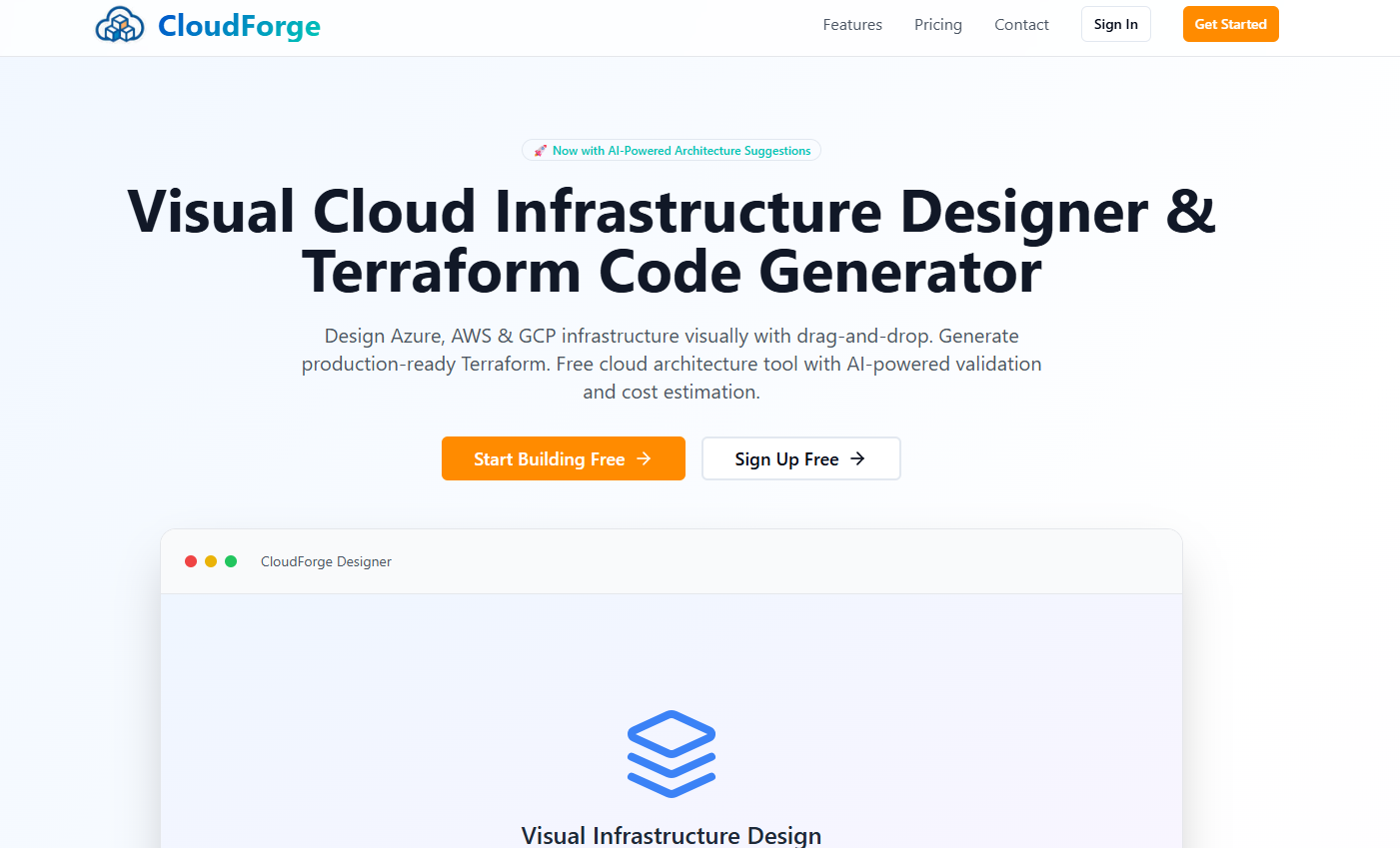
Welcome to CloudForge! On the homepage, you'll find everything you need to get started:
- Try for Free: Click the prominent blue button to create your free account and start designing immediately
- View Demo: Explore sample architectures to see what's possible with CloudForge
- Key Features: Learn about visual design, multi-cloud support, and code generation capabilities
- No Credit Card Required: Start building infrastructure diagrams without any commitment
Create Your Account
Sign up in seconds with your preferred method
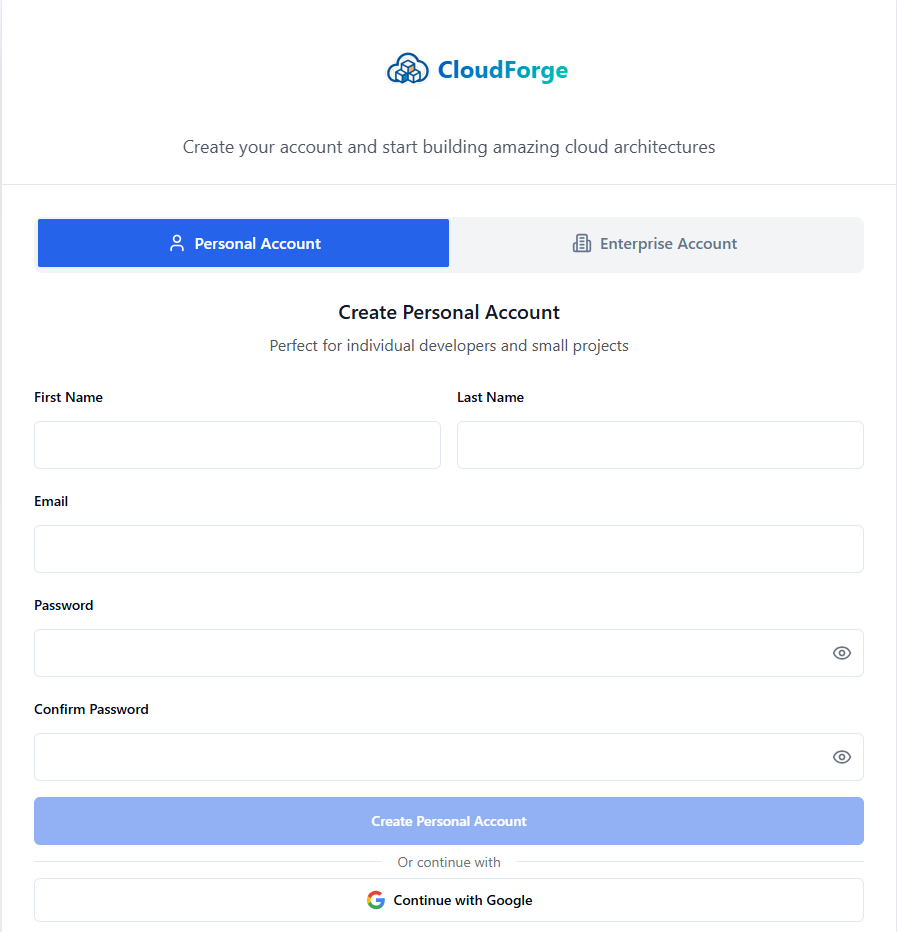
Creating your CloudForge account is quick and easy:
- Choose Your Method: Sign up with Google, Microsoft, or email/password
- No Credit Card: Start with a free account - no payment information required
- Instant Access: Begin designing infrastructure immediately after registration
- Secure: Your account is protected with industry-standard security protocols
- Account Types: Choose between individual or enterprise accounts based on your needs
Sign In to Your Account
Quick authentication with Google or Microsoft
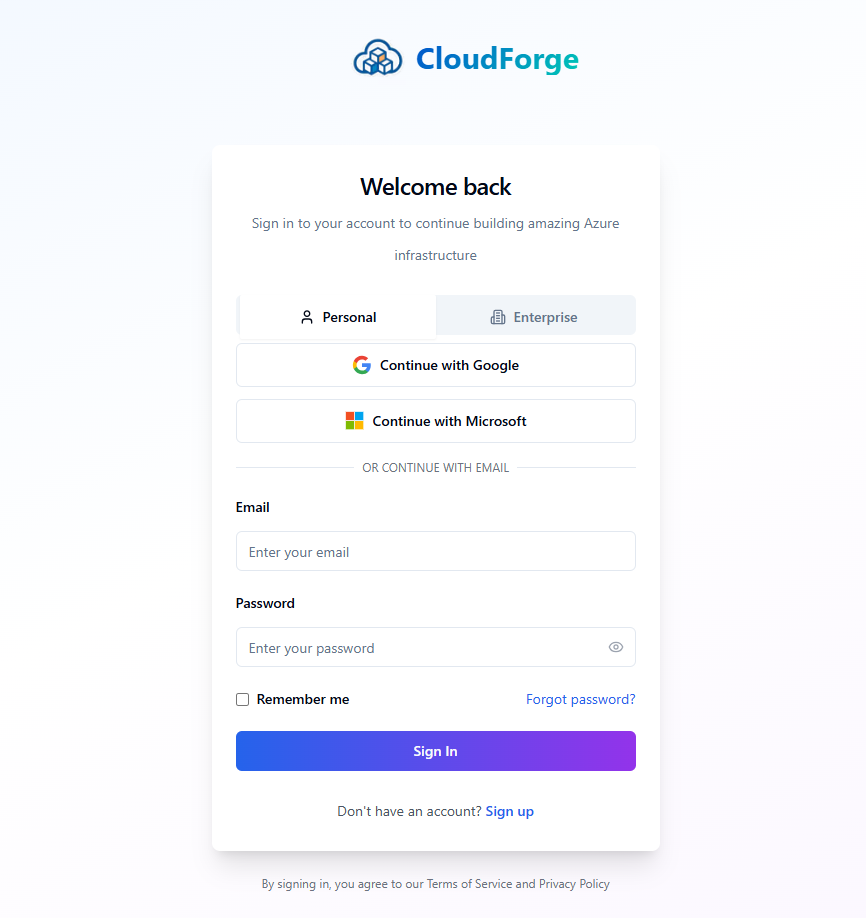
CloudForge offers convenient authentication options for returning users:
- Google Sign-In: Use your existing Google account for instant access
- Microsoft Sign-In: Perfect for enterprise users with Microsoft 365 accounts
- Secure Authentication: Industry-standard OAuth 2.0 protocol keeps your data safe
- Email/Password: Traditional login option for email-registered users
- Stay Logged In: Optional remember me feature for convenience on trusted devices
Select Your Cloud Provider
Choose from Azure, AWS, or Google Cloud Platform
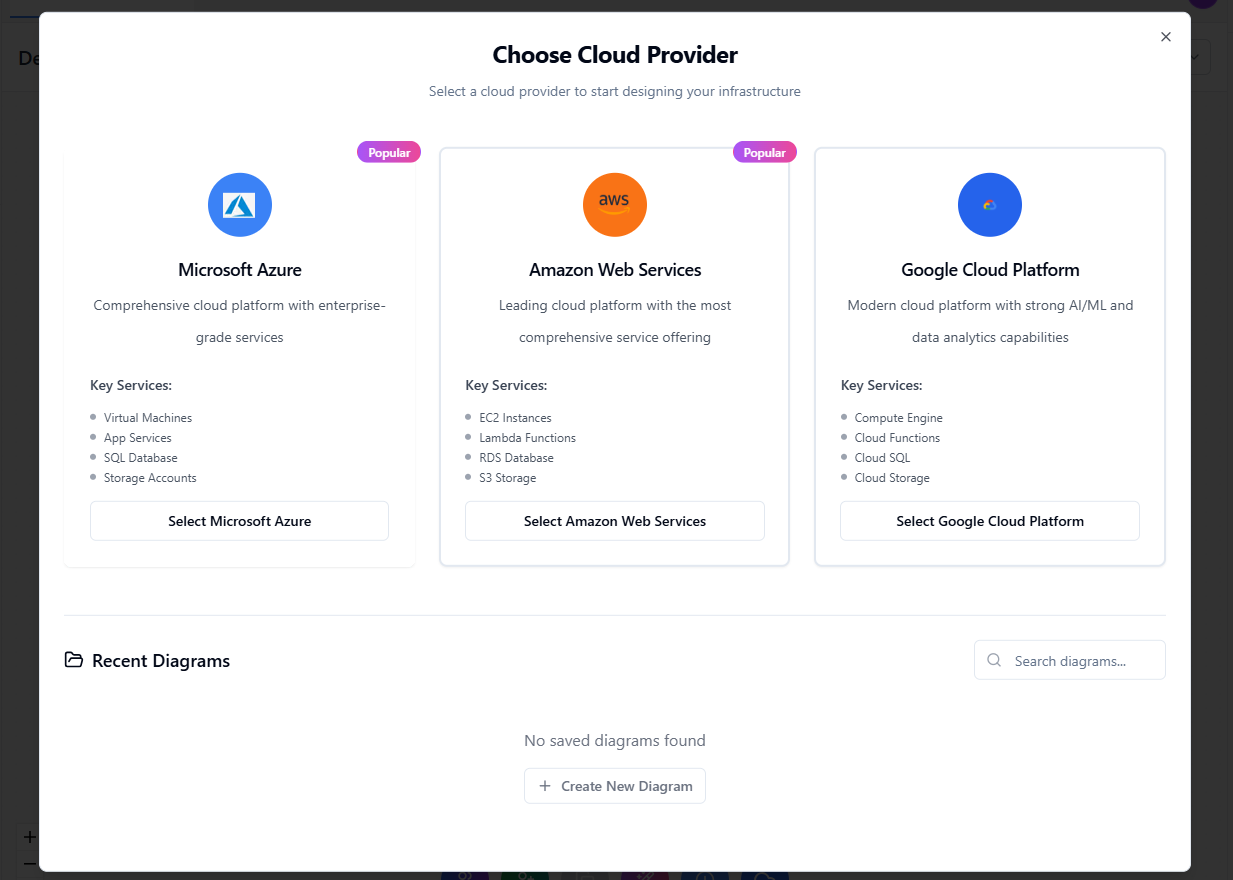
Select the cloud platform you want to design for:
- Microsoft Azure: Full support for Azure services including VMs, App Services, Storage, and networking
- Amazon AWS: Complete AWS resource library including EC2, S3, Lambda, and VPC components
- Google Cloud: GCP services including Compute Engine, Cloud Storage, and networking resources
- Multi-Cloud: You can create separate diagrams for each provider or design hybrid architectures
- Switch Anytime: Change providers for different projects as needed
Master the Toolbar
Access powerful features for saving, coding, and sharing

The toolbar provides quick access to essential functions:
- Save Diagram: Store your work securely in the cloud with automatic version control
- Recent Diagrams: Quickly access your previous projects and continue where you left off
- Generate Code: Convert your visual design into production-ready Terraform, ARM templates, or Bicep files
- Export Options: Download as PNG, SVG, JSON, or infrastructure code formats
- Share: Generate shareable links for collaboration with team members
- AI Validation: Get intelligent recommendations for architecture improvements
Design Your Infrastructure
Drag and drop resources to build your architecture
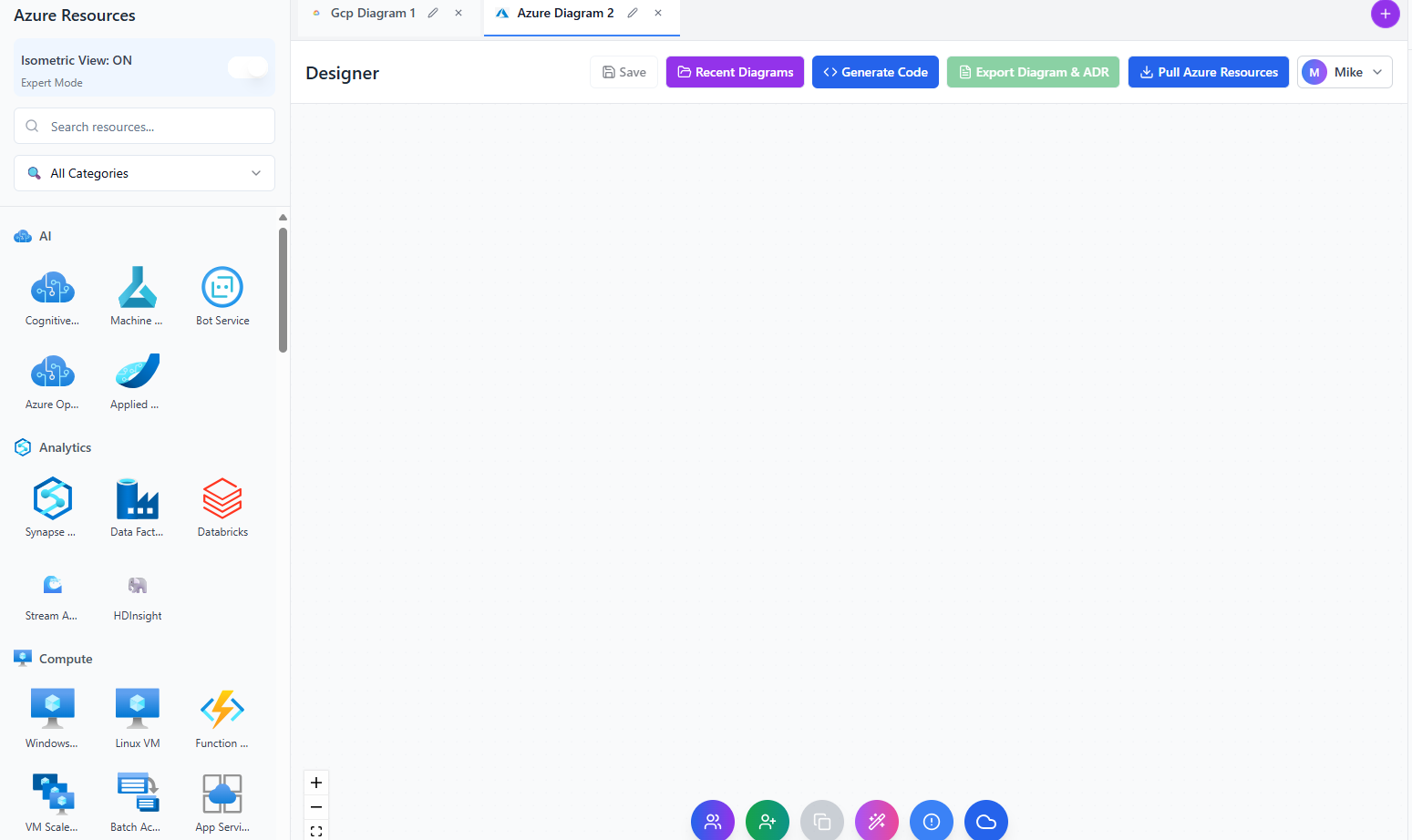
The visual designer makes infrastructure creation intuitive:
- Resource Library: Browse categorized resources in the left sidebar (Compute, Networking, Storage, Databases, etc.)
- Drag & Drop: Simply drag resources from the sidebar onto the canvas to add them to your architecture
- Configure Resources: Click any resource to open the properties panel and configure settings like names, sizes, and parameters
- Create Connections: Draw connections between resources to define relationships (e.g., VM to VNet, App to Database)
- Search Resources: Use the search bar to quickly find specific Azure services
- Zoom & Pan: Navigate large architectures easily with zoom controls and canvas panning
- Best Practices: CloudForge validates your design and suggests improvements for security, cost, and performance
💡 Pro Tip:
Start with networking resources (VNet, Subnet) before adding compute and storage. This establishes the foundation of your architecture and makes it easier to organize resources logically.